Installation steps
- Open the Chrome Web Store and click “Add to Chrome”.
- Pin WatchTranslate to your browser toolbar.
- Open the extension and log in. You need to log in separately on the website and in the extension.
- Open a YouTube or X / Bilibili video and click the translation icon in the player controls to start translating.
When switching from ZIP to the Store version, disable the old extension and sign in and configure the Store version again to avoid duplicate subtitles.
Install ZIP manually
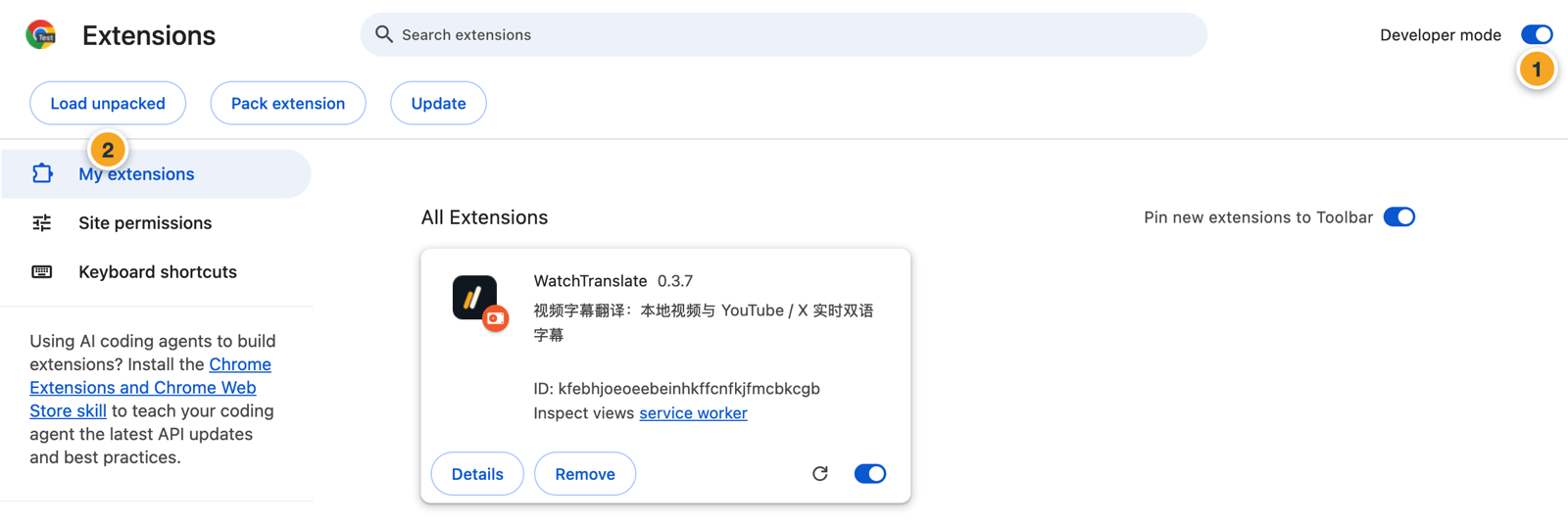
- Download and unzip the ZIP, then open chrome://extensions/ in Chrome's address bar: turn on the Developer mode switch in the top right, click Load unpacked in the top left, and select the unzipped folder.
Disable the old extension before updating to avoid displaying subtitles from both versions simultaneously. For first-time installation of this downloaded version, log in and configure again; subsequent updates should be done within the same folder.