
How do I translate a full video in advance?
Normally subtitles are made just ahead of where you are watching. To have the whole video ready first, open Translate all subtitles in advance in the WatchTranslate panel, check the estimate and start; keep watching while it works.
Watch on your phone
Scan to get the app


Three steps to a fully prepared video
Add the extension
Chrome or Edge on a computer. On the video's page, click WT and set Subtitle source and Target language: that is what gets prepared.
Check the video
Open Translate all subtitles in advance and press Check video to see how much is left and what it will cost.
 WTIf you break a lotus root, fine threads still connect it.
Start translating ahead, then watch
Press Start translating ahead. Prepared parts show subtitles straight away; you can pause and continue later on the same video.
What preparing in advance changes
Skip anywhere, no waiting
Jump to the last half hour of a lecture and the subtitles are already there.
Pause and pick up later
Stop part-way and continue on the same video; finished parts are skipped and not charged again.
A complete file to export
Once everything is prepared, one export gives you subtitles for the whole video.
When people prepare a whole video
Two-hour lectures
Courses and conference talks you will jump around in.
Documentaries
Long films you want to watch without a pause for subtitles.
Podcasts on video
Long conversations you skim for the parts that matter.
Stream replays
Multi-hour replays where the highlights are near the end.
Subtitles to keep
When you need the full SRT, not just what you watched.
Films on your computer
In the local player, prepare the whole file before movie night.
Do I need to prepare in advance?
For most videos, translating while you watch is enough. Preparing in advance helps when you'll skip around or want everything at once.
| Your situation | Translate while watching | Prepare in advance |
|---|---|---|
| Short clip, watched start to end | Plenty | Not needed |
| Long video, skipping around | A few seconds' wait after each jump | Subtitles already there |
| Need a full subtitle file | Only the parts you watched | Every part, ready to export |
| Watching later, elsewhere | Starts when you play | Done before you sit down |
Preparing in advance is available on YouTube, X, Bilibili and in the local player.
What we tried
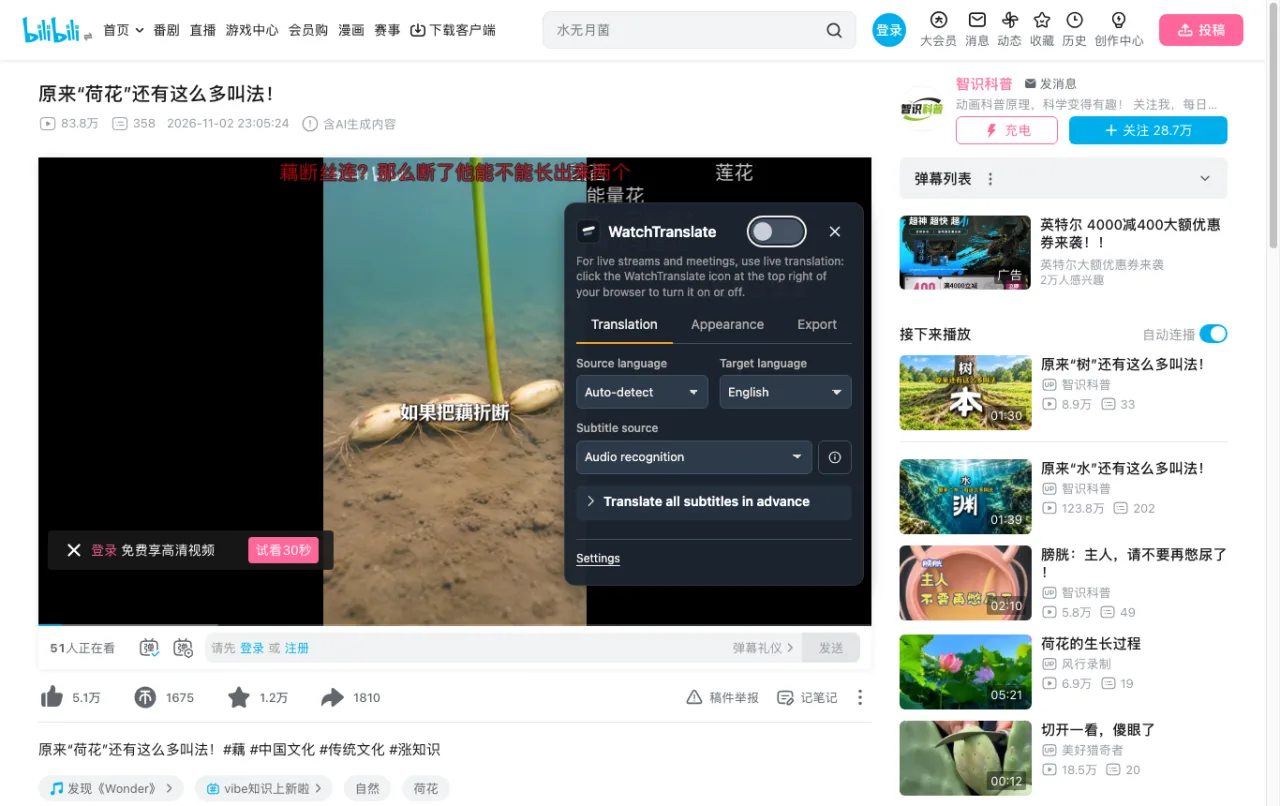
On a computer with the live extension, signed out of Bilibili, panel open on a Chinese video.
- Works
Panel on a Bilibili video
Translate all subtitles in advance appears under the subtitle source; the same video's English subtitles came from the audio.
Tested 9 Nov 2026 · extension 0.5.737 · Chrome · signed out of Bilibili
Watch on your phone
Scan to get the app
Then open your long video: in a browser click WT, for a file use the local player, and prepare it before you press play.
In detail
What the progress means
| What you see | What it means | What to do |
|---|---|---|
| All parts finished | Every part has been processed | Watch or export |
| Some parts unfinished | Those parts haven't been processed yet | Resume advance translation on the same video |
| Some parts failed | They have no subtitles and were not charged | Press Retry unfinished segments |
| A part with no lines | Silence or music: nothing was said | Nothing to fix |
How preparing in advance works
While you watch, WatchTranslate processes the part you are on and the next, about 30 seconds each. Preparing in advance runs through every part of the video in order instead, without waiting for playback to reach it. It uses the same source and languages you chose in the panel; change them and you are preparing a different set of subtitles.
On YouTube, X and Bilibili
Open Translate all subtitles in advance, press Check video, review the estimate and press Start translating ahead, or Resume advance translation if some parts are done. Pause advance translation stops new parts from being sent; a part already in progress can still finish and is charged as usual. Keep the tab open while it runs.
In the local player
Choose the file, sign in and set the source and languages. Open Whole-video translation under the player, review the estimate and confirm. On a phone, keep the page in front: locking the screen or switching apps pauses it.
Costs and gaps
Parts are charged by the usual per-minute rates. Finished parts are reused and never charged twice; failed parts are free and can be retried. Parts with no speech are charged for recognition but contain no lines; parts that are completely silent are not charged.
Behind the progress bar
Does the video have to keep playing?
No. Keep the page and its source available. Watching at the same time is fine, though it can slow the batch a little.
What does Check video do?
It counts the parts still needed for your source and languages and shows the estimated cost before anything starts.
Is everything captioned when it finishes?
Every part has been processed, but silence has no lines and a failed part needs a retry. Export only includes what was produced.
Why long videos often lack captions
From the YouTube Help Center, checked signed out of YouTube on .
YouTube notes that automatic captions may not be produced for some videos, including very long ones.
support.google.com/youtube/answer/6373554
Prepare long videos smoothly
Settle the source first
Pick the subtitle source and language before Check video, so the estimate matches what you'll get.
Start, then press play
Watch from the beginning while the rest is prepared ahead of you.
Retry before exporting
Fill any unfinished parts, then export the whole video in one go.
Use it for the long ones
Lectures, documentaries and replays benefit most.
About translating a full video in advance
Must the video keep playing?
No. Keep the page open and the source available.
Which sites support it?
YouTube, X and Bilibili in the extension, and files in the local player. Other sites translate while you watch.
If I pause, do I lose what's done?
No. Finished parts are kept and skipped when you continue.
Am I charged twice when I continue?
No. Finished parts are reused; only new parts are charged.
What happens to failed parts?
They are not charged. Press Retry unfinished segments to fill them.
Why are some parts empty?
Nothing was said there, such as music or silence.
Can I change the language half-way?
Changing source or language prepares a different set; finished parts in the old language stay as they were.
Can I export the whole video's subtitles?
Yes, once every part is done. Export includes only what was produced.
Does it work on a phone?
In the local player, keep the page in front; locking the screen pauses it.
One tool to understand foreign-language videos on many sites
Translates as you watch, wherever you are in the video
Jump anywhere and it translates there — no need to translate the whole video first.
Translate videos on YouTube, X, Bilibili and more
Translate existing subtitles directly, or generate bilingual subtitles when there are none.
Better translation quality than traditional machine or real-time translation
AI language models use context and connect the surrounding dialogue to understand meaning.
Export subtitles as SRT / VTT files
Download generated subtitles as original, translated, or bilingual text and load them in common players.
Already translated by someone? Watch it free
Sign up free to reuse generated subtitles for the same video, subtitle source and languages, even after your credits run out.
Bilingual subtitles on your phone
Play video files on your phone, or open a video site in the app's built-in browser and tap Translate. A native player handles more video formats than the web player.
Keep reading
Related questions
- Export SRT or VTTSave the finished subtitles
- Translate Bilibili videos to EnglishLong uploads included
- YouTube video has no subtitlesSubtitles from audio
- Translate a Turkish series on YouTubeTwo-hour episodes
Choosing a tool
More: All guides · Supported sites
Also in: 简体中文 · 繁體中文 · 日本語 · 한국어 · Español · Deutsch · Français · Português · Italiano · العربية · Polski · Nederlands · Türkçe · Bahasa Indonesia · Tiếng Việt · Русский · हिन्दी